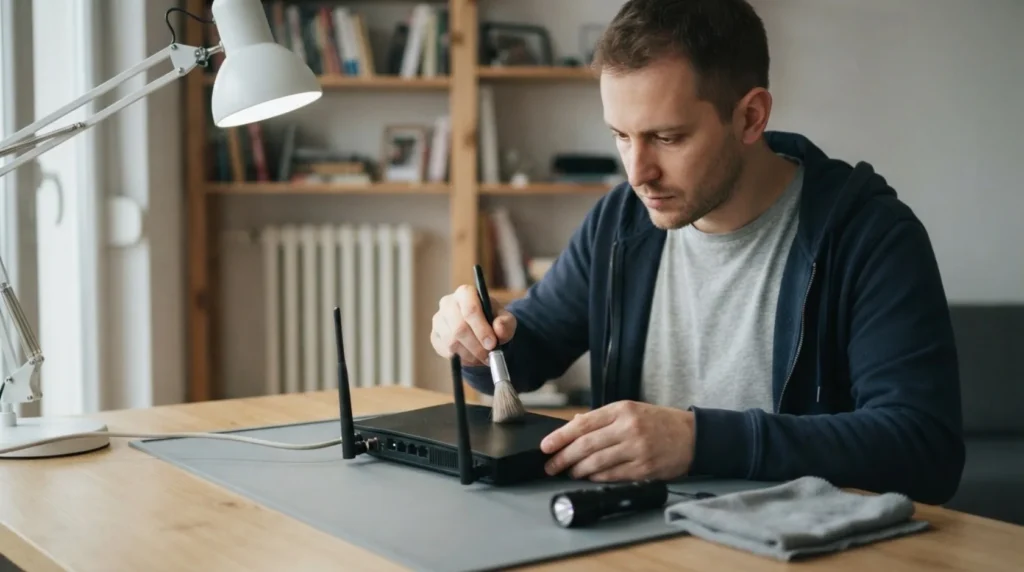
When Wi-Fi is connected but there's no internet, the problem isn't always in the phone or laptop itself; it can be in the router, the WAN connection, DNS, or a single device stuck with the wrong network settings. A good check starts with the quickest way to separate things out: does the problem affect one device or everything in the house.
You need basic familiarity with the router, network indicator lights, and turning devices off and on. If you don't want to change advanced network settings, stick to basic diagnostics and note the symptoms for your provider.
⚠ Safety note: This guide involves working with electricity. If you're not completely sure about every step, stop and call a licensed professional. Before you start, always switch off the power at the breaker or close the main water/gas valve.
1 Check whether the internet is down on just one device or all of them

If other devices work normally, the problem is more likely local, in one phone, laptop, or its network settings. If nobody in the house has internet, the focus shifts immediately to the router or the connection to the provider.
2 Look at the router's indicator lights, especially the internet or WAN light

A Wi-Fi network can broadcast perfectly fine even when the router has no route out to the internet. The lights and WAN connection status give the first clue as to whether the problem is inside the house or between the router and the provider.
3 Restart the problem device and the router in the right order
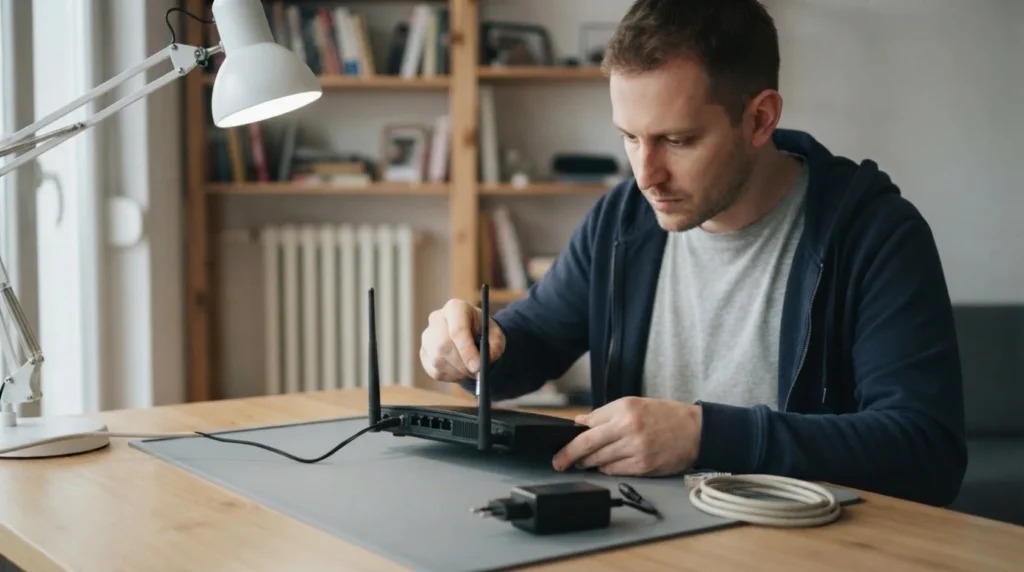
For a home network, a proper restart often helps, but not a chaotic shutdown of everything at once. First turn the router off and back on with a short pause, then reconnect the device that isn't working.
4 Forget the network and reconnect if the problem is on one device

Saved old settings, a bad IP lease, or a stuck DNS entry are sometimes solved by simply reconnecting to the same network. This step is quick and worth doing before any deeper intervention.
5 If the connection still has no internet access, note the status for your provider
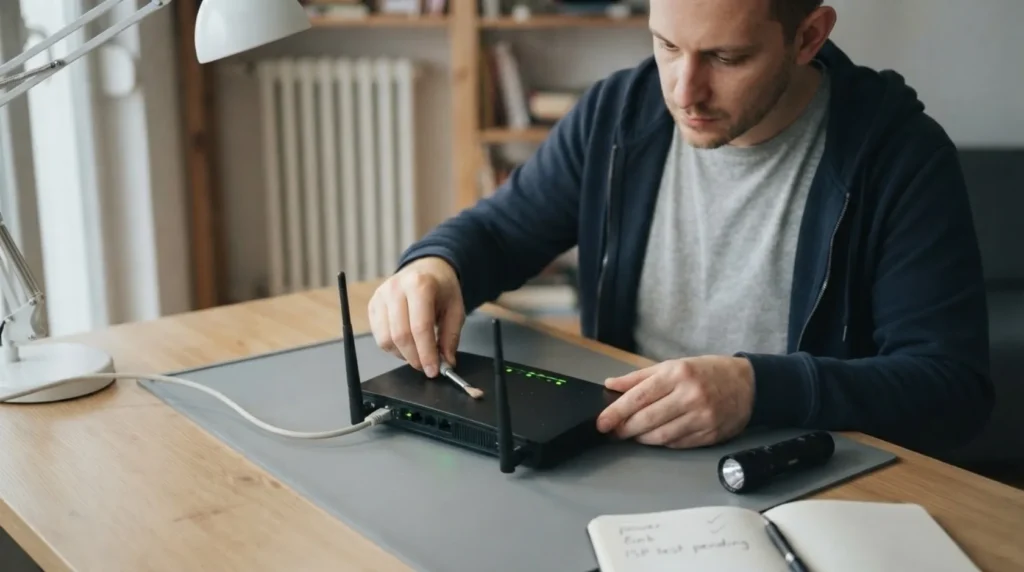
It's important to know whether Wi-Fi works, whether the WAN light shows a problem, and whether at least one device can reach the internet. With that information, a call to your provider or further home diagnostics goes much faster and more precisely.
When to call a professional: If the job involves changes to the electrical panel, the main gas line, or load-bearing walls/beams — or if you're not sure how it will turn out — this is not a DIY task. Hire a licensed professional.
Final check
- It's clear whether the problem affects one device or the whole network.
- The router's status and WAN connection have been checked before any deeper assumptions.
- A basic restart and reconnection have been done without randomly changing advanced settings.
Common problems
- Wi-Fi shows full signal, but no device has internet.
- This very often means the local wireless network is alive, but the route out to the provider isn't. Check the WAN status and the router before suspecting the phones or laptop.
- Only one phone has no internet on the same network.
- It's more likely a local device problem than a router fault. Reconnecting, restarting, and checking that no VPN or similar setting is enabled usually help.