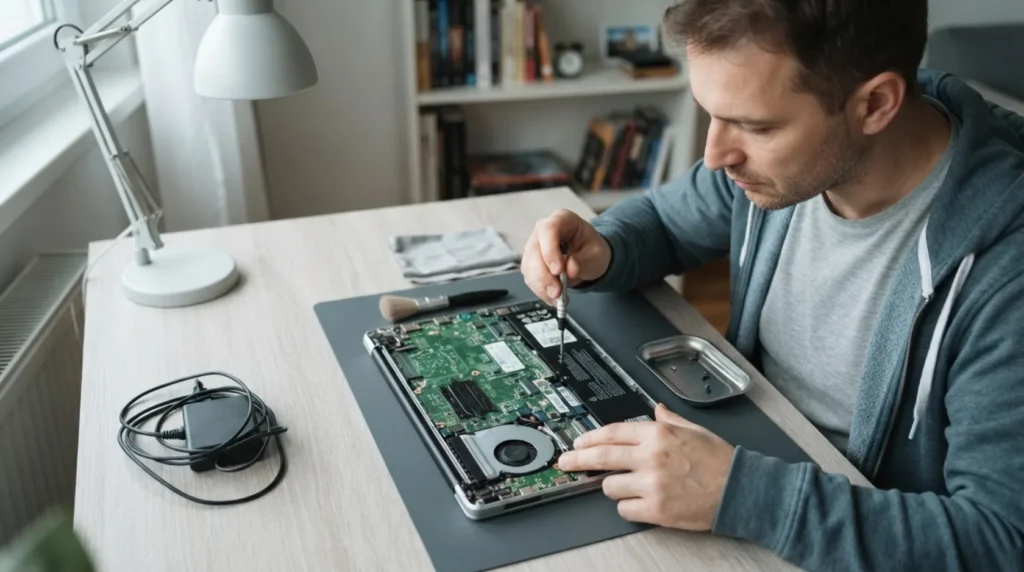
A laptop that doesn't recognize the charger may charge weakly, not charge at all, or show a message that the adapter isn't genuine or isn't recognized. The cause often isn't the motherboard right away, but the adapter itself, the center pin, USB-C negotiation, or a damaged connector.
You need basic familiarity with the adapter, cable, and the laptop's port. If it's an original model with a specific adapter or USB-C power delivery, it's also important to check whether the charger being used can even provide the required power profile.
⚠ Safety note: This guide involves working with electricity. If you're not completely sure about every step, stop and call a licensed professional. Before you start, always switch off the power at the breaker or close the main water/gas valve.
1 Check whether the adapter is right for that model and its power rating
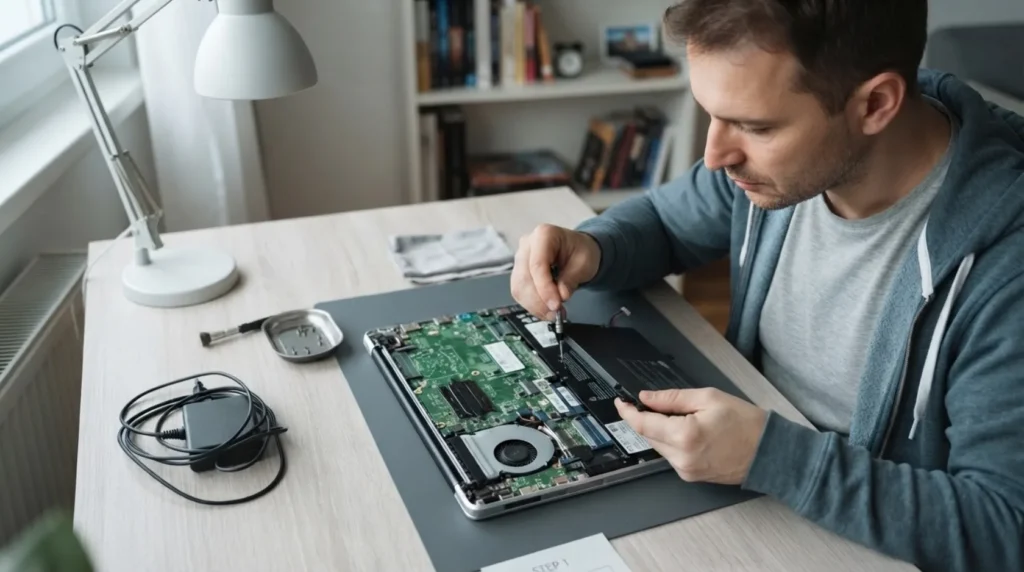
It's not enough for the charger to 'physically fit' or for the USB-C plug to go into the port; the laptop may require a specific power level or adapter identification. A too-weak or incompatible charger often gives a 'not recognized' message even though it seems to work fine.
2 Inspect the connector, the cable, and any center pin or the USB-C port
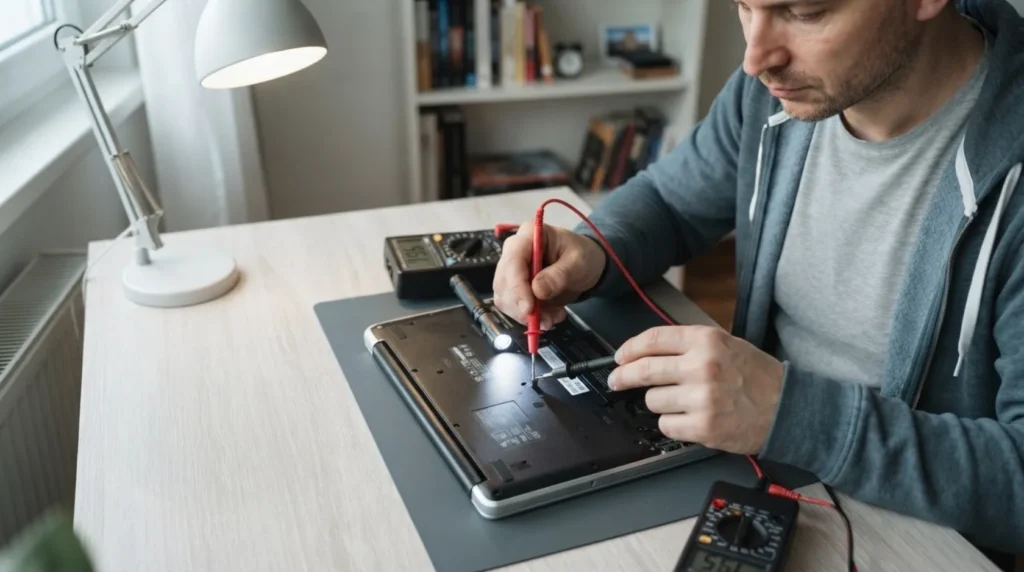
A damaged tip, a loose center pin, or a worn USB-C connector can interrupt identification even while some current is getting through. Pay attention to whether charging only works at a certain angle, since that's an important clue for a mechanical problem.
3 Try a different working adapter or another compatible port if available
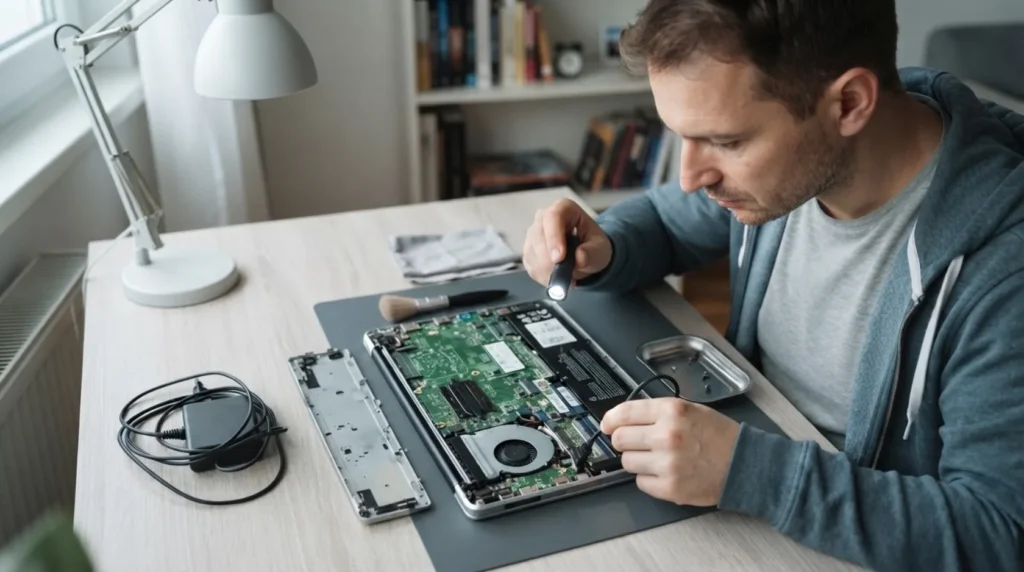
Quickly swapping in a known-good charger often separates an adapter fault from a laptop fault. On devices with multiple USB-C ports, it's also worth checking whether all of them support charging, since that isn't always the case.
4 Check the system message and the battery's behavior
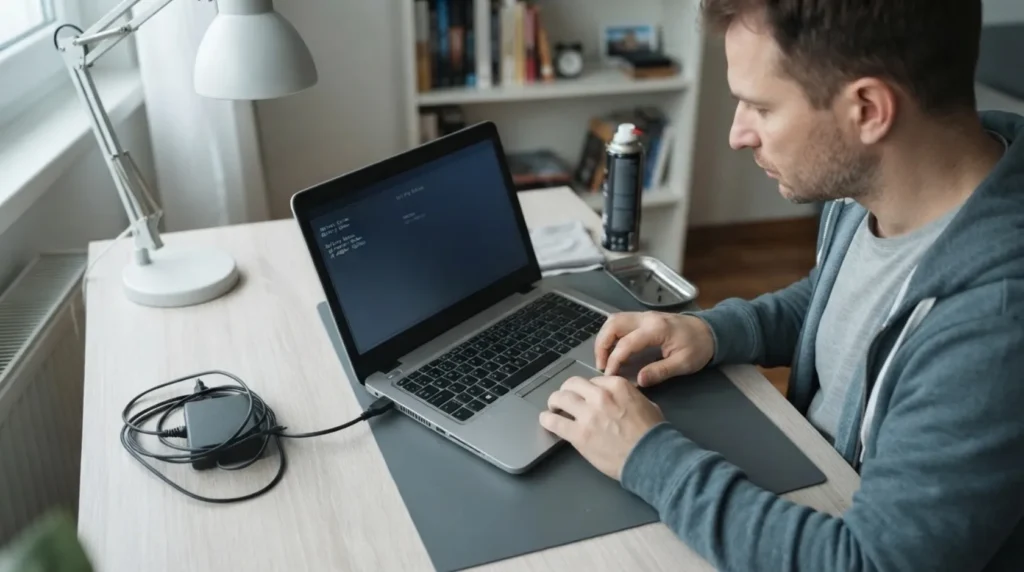
Some laptops clearly report that the adapter isn't recognized, that the battery isn't charging, or that it's only charging slowly. These messages aren't decoration; they give you a very concrete clue about whether the problem is power, identification, or the battery charging itself.
5 If it stays unrecognized even with a working adapter, plan service for the connector or the board
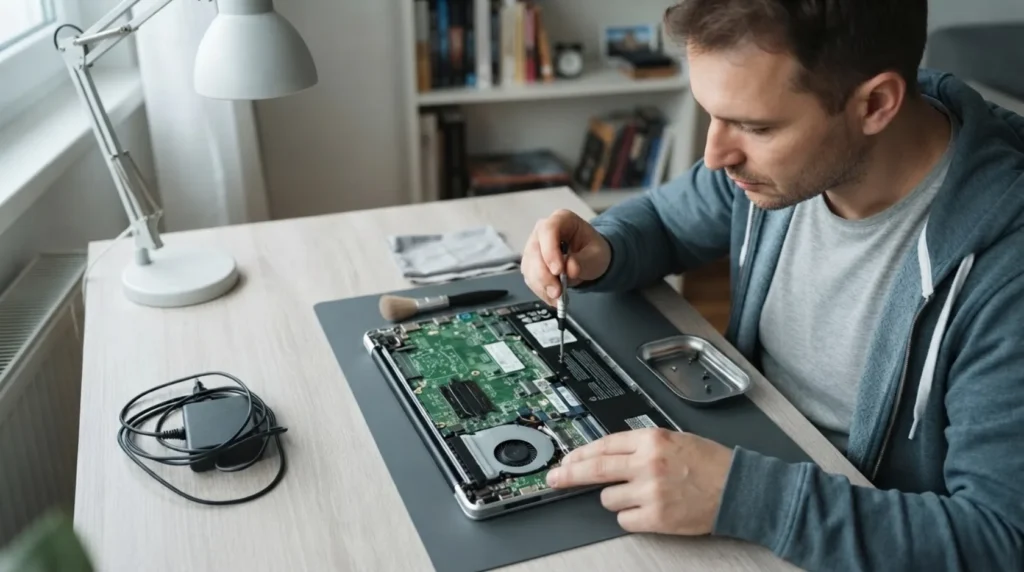
When several compatible, working chargers give the same result, home diagnostics is essentially done. From here you need an inspection of the input circuitry, connector, or charging controller, which isn't a job for blind soldering.
When to call a professional: If the job involves changes to the electrical panel, the main gas line, or load-bearing walls/beams — or if you're not sure how it will turn out — this is not a DIY task. Hire a licensed professional.
Final check
- It's confirmed that the adapter actually matches the laptop's model and required power.
- The connector and cable don't show obvious wobble or interruption when angled.
- If the problem persists even with a working charger, it's clear the laptop needs servicing, not another round of guessing.
Common problems
- The laptop runs on the charger, but the battery doesn't charge.
- This often means the adapter is providing some power, but identification or full power delivery isn't working properly. The system message and charger compatibility are key here.
- Charging only works when the connector is at exactly a certain angle.
- This very often points to a mechanically worn connector or a break in the cable. Further pushing and twisting the connector usually speeds up the failure.