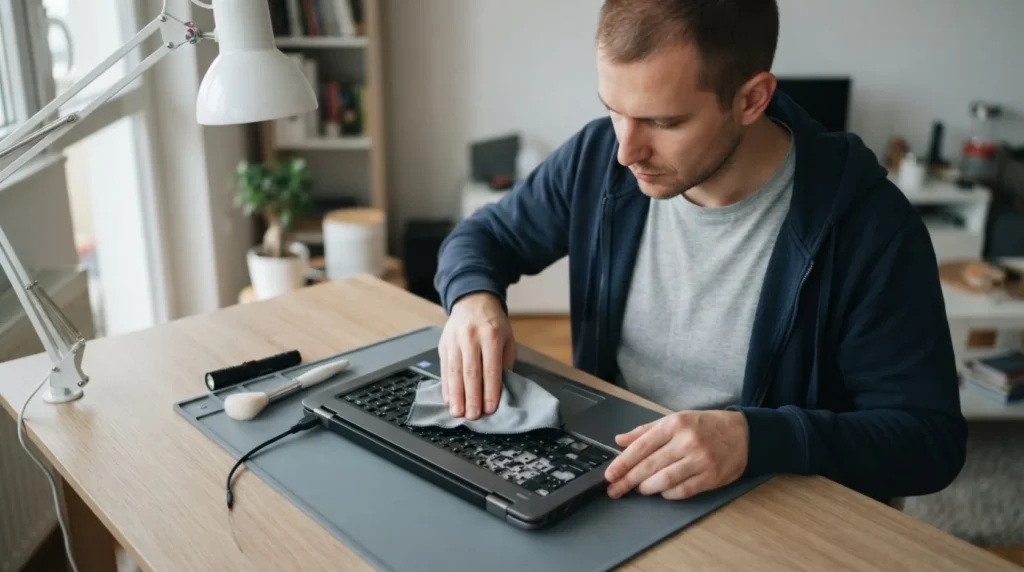
When liquid spills on a keyboard, the first few minutes are critical: the goal is to cut the power and keep the liquid from staying between the layers and on the electronics. The biggest mistake is continuing to use the device 'while it still works,' since a short circuit and corrosion often show up a bit later, not immediately.
You need basic familiarity with turning off a laptop or external keyboard and enough patience for drying it out. If the spilled liquid was sweet, milky, or alcoholic, the risk of sticking and corrosion is higher than with plain water.
⚠ Safety note: This guide involves working with electricity. If you're not completely sure about every step, stop and call a licensed professional. Before you start, always switch off the power at the breaker or close the main water/gas valve.
1 Immediately switch off the device and disconnect it from power
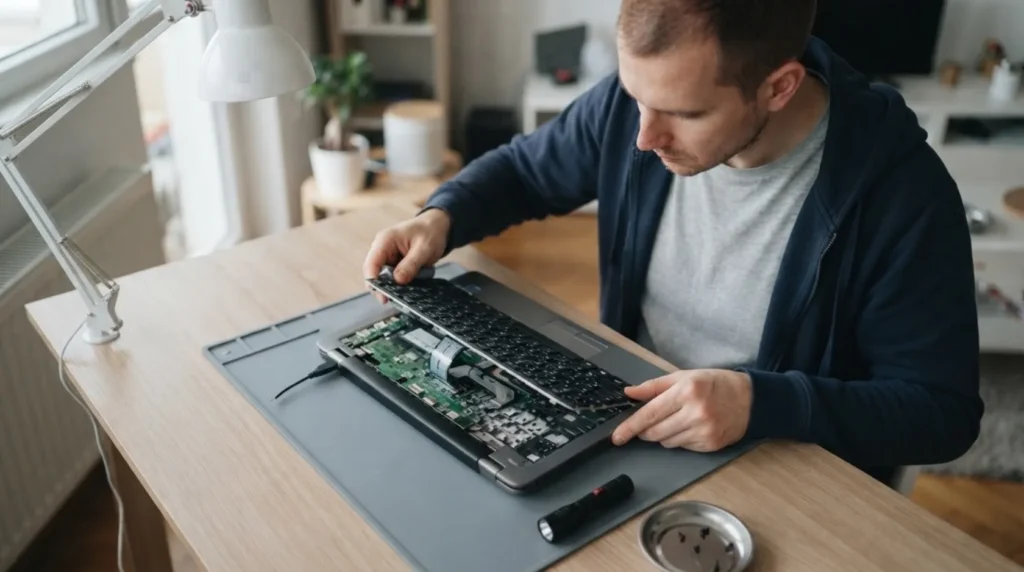
If it's a laptop, shut it down, unplug the charger, and don't try to check whether any key still works. With an external keyboard, immediately unplug the USB cable or switch off the wireless receiver to stop any further current flow through the wet contacts.
2 Turn the keyboard so the liquid drains out, not deeper in
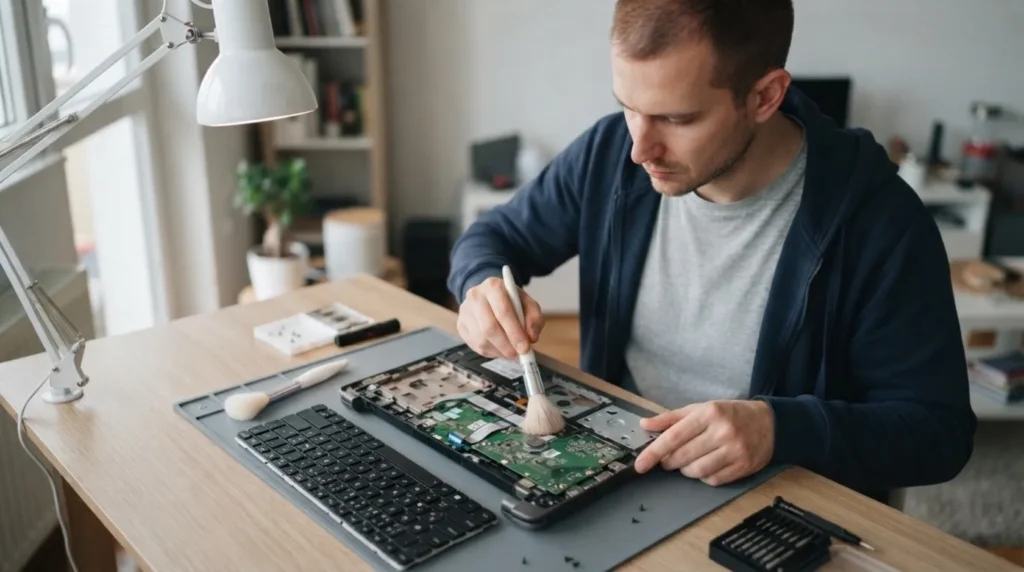
Position the device at an angle or upside down enough that gravity helps push the liquid out from inside. Keeping it flat on the table looks calmer, but actually lets the liquid linger around the membranes, connectors, and controller.
3 Blot the surface and assess what kind of liquid was spilled
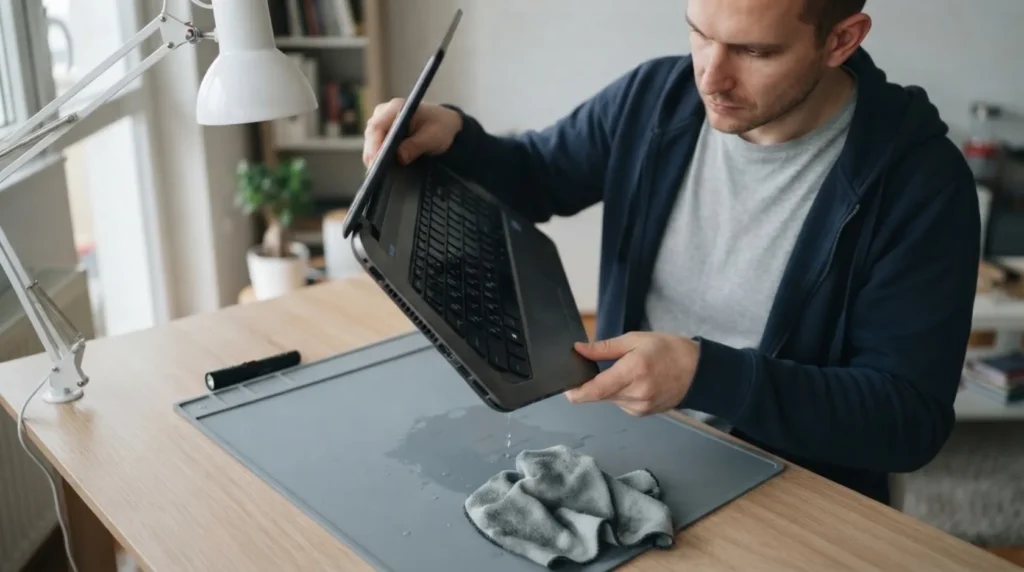
Wipe up the visible liquid with a soft cloth or paper towel without pushing moisture further under the keys. Plain water or mineral water isn't the same problem as juice, sugary coffee, or milk, since sticky residue later jams the mechanism and speeds up corrosion.
4 Don't turn the device on until it's dry and, if needed, cleaned inside
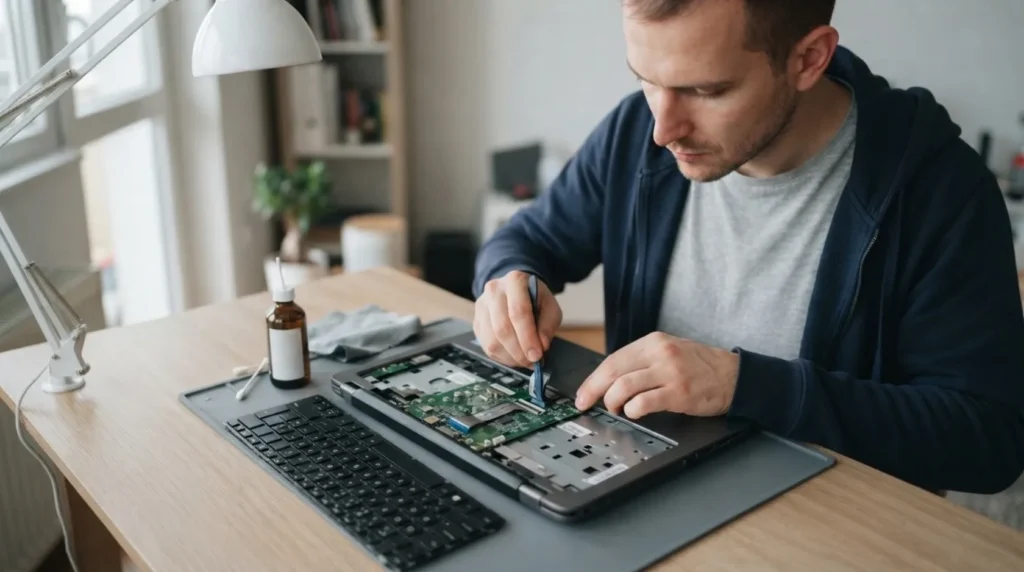
The biggest temptation is a quick test, but that's exactly what turns a partly salvageable problem into a serious fault. If a larger amount of liquid got in, or it was a sticky liquid, external drying alone is often not enough and a deeper inspection is needed.
5 After it's fully dry, test the keys and know the limit for service
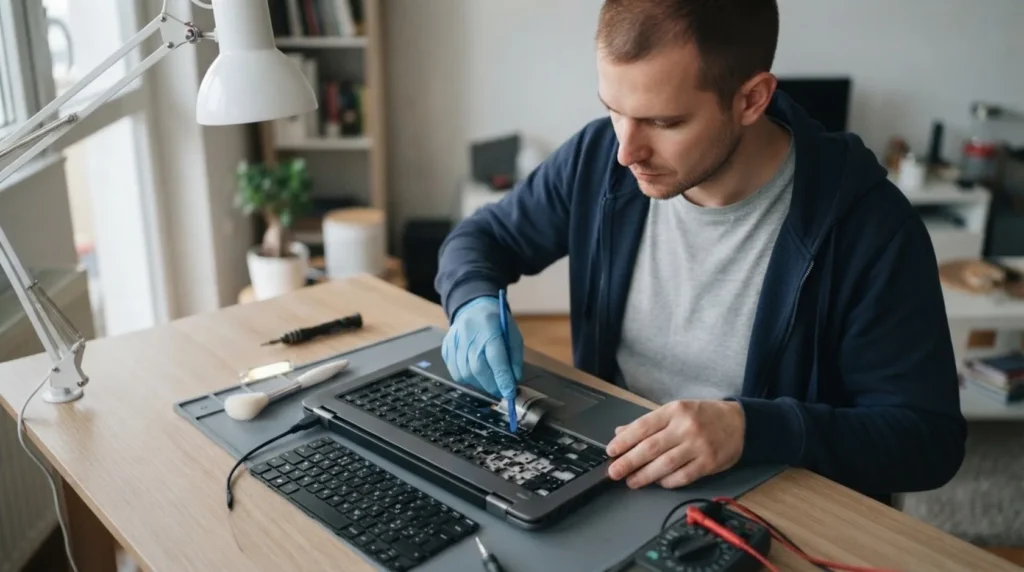
Once you're sure everything is dry, test whether all the keys respond evenly and whether any stick, double up, or don't work at all. If the problem persists after drying, especially on a laptop, that's a sign the liquid left a trace deeper in the assembly and further use without service isn't wise.
When to call a professional: If the job involves changes to the electrical panel, the main gas line, or load-bearing walls/beams — or if you're not sure how it will turn out — this is not a DIY task. Hire a licensed professional.
Final check
- The device wasn't turned back on until the keyboard was completely dry.
- The keys work without sticking, double input, or a complete lack of response.
- For a larger spill or a sticky liquid, the limit for professional cleaning has been recognized.
Common problems
- Some keys work and others don't, or type double.
- This often means residue is left underneath, or the contact membrane is already damaged. Extra drying alone usually isn't enough at that point.
- The keyboard works right after the spill, then stops working later.
- That's typical of a delayed short circuit or corrosion. Don't read it as 'it just went away on its own' — take it as a sign that moisture is still inside.