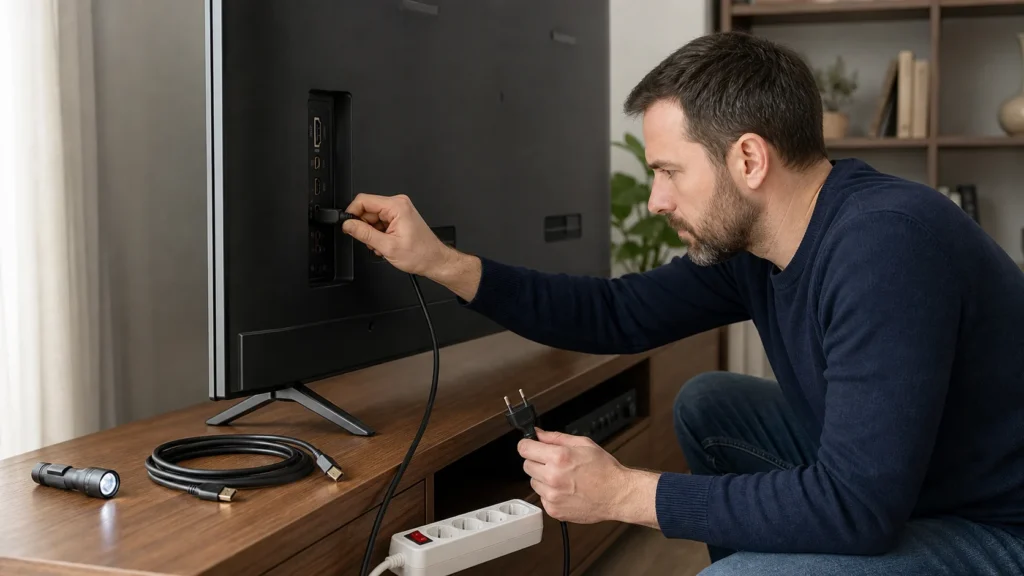
A TV or monitor that won't turn on feels like a death sentence, but surprisingly often the cause is trivial: a dead outlet, a loose power cable, the wrong signal input, or electronics that got stuck and just need a plain 'power cycle' (power reset). A systematic check from the outlet to the signal cable takes about fifteen minutes and very often saves you a trip to the service center. Do all cable checks with the device unplugged from power, and never open the housing under any circumstances — inside a TV, voltage remains dangerous even after being unplugged, because of the capacitors, so opening the case is a job for a professional.
Basic familiarity with cables and the device's menu is enough. To check the outlet with a multimeter (voltmeter), you need to know how to do a basic AC voltage measurement; if you don't know how, simply test the outlet with another device, like a lamp. If you're not sure how to use a multimeter, don't use it to check the outlet.
⚠ Safety note: This guide involves working with electricity. If you're not completely sure about every step, stop and call a licensed professional. Before you start, always switch off the power at the breaker or close the main water/gas valve.
1 Check the power from the outlet
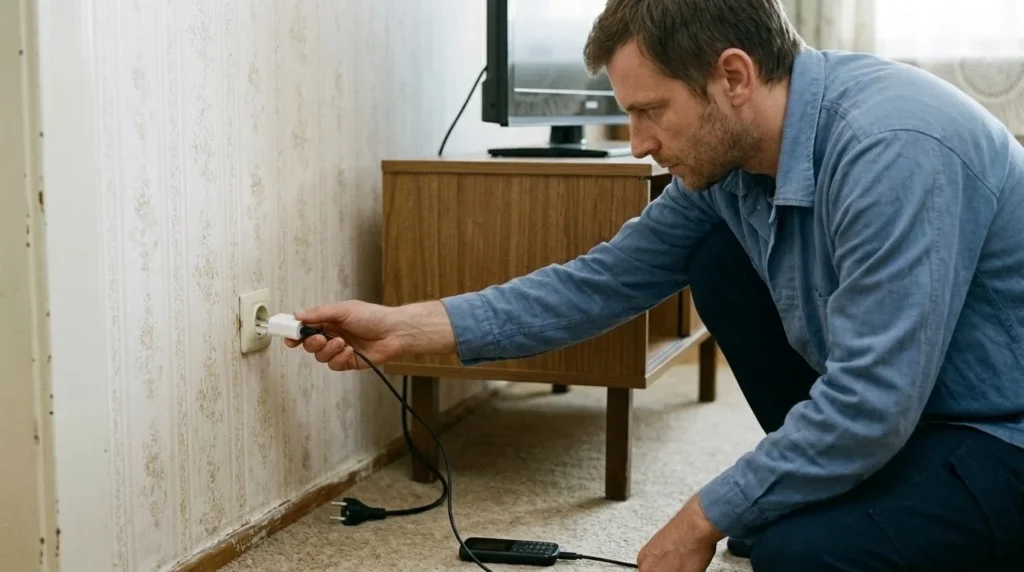
Before any further steps, fully unplug the TV or monitor from power. Then plug some other, known-working device, like a table lamp or a phone charger, into the same wall outlet to check whether there's any voltage at all. If that device doesn't work either, the problem is in the outlet or the breaker in your distribution board (fuse box). Try a different outlet in the room as well. If the outlet has a switch, check that it's turned on.
2 Check the power cable and adapter
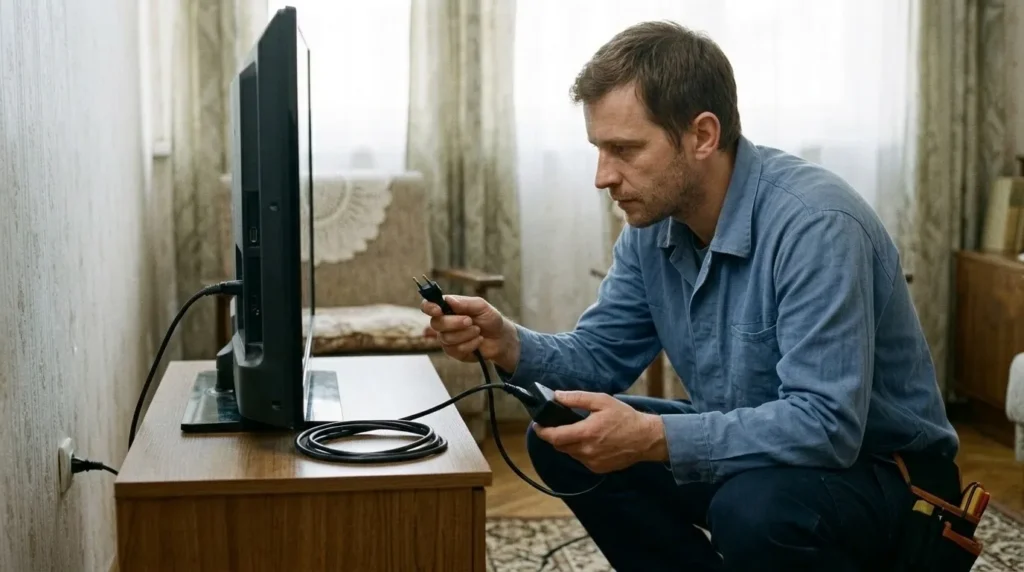
With the device unplugged, carefully inspect the entire power cable, from the outlet to the device. Look for any visible insulation damage, breaks, overheated spots, or burn marks. If your device uses an external adapter (a so-called 'brick' or power brick), check that too for the same kind of damage. Plug the cable in firmly on both ends. If the cable is detachable, try swapping it for a different, known-good and compatible cable. Pay special attention to voltage (V) and current (A) if you're replacing the adapter — they must match the original exactly, e.g. for HP Smart adapters or Lenovo Slim Tip/USB-C adapters.
3 Check the power indicator
After checking the outlet and cable, plug the device back into power. Look for a small LED (power indicator) on the front or bottom of the device. If the light doesn't come on at all, the problem is almost certainly in the power supply — either the cable, the adapter, or the internal power unit. If the light stays on or blinks in a specific pattern, but there's no picture, that usually points to a problem with the signal, the backlight, or the panel itself.
4 Check the signal source
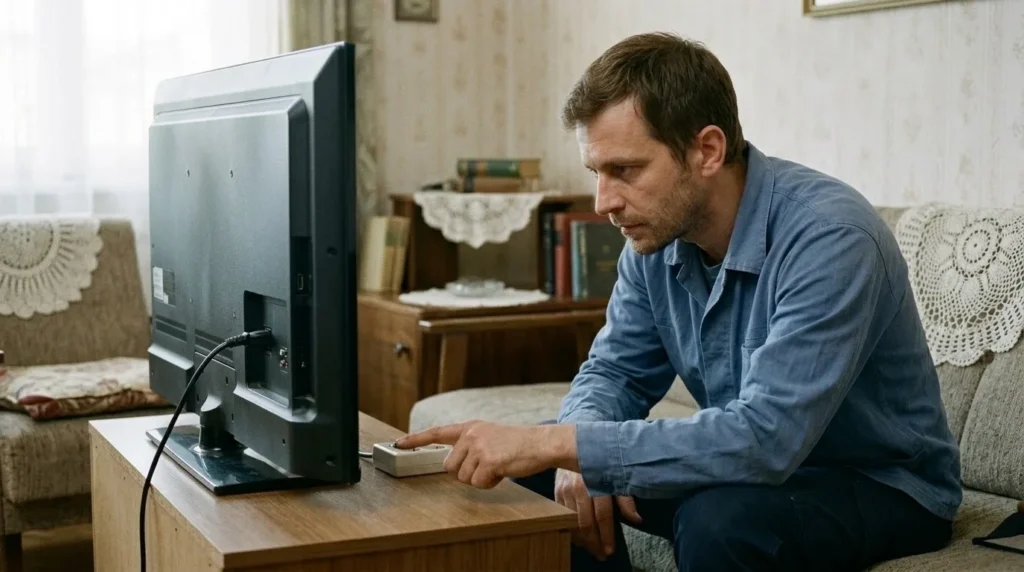
If the power indicator is on but there's still no picture, it's very likely the problem is with the signal source or a wrong input selected. Using the remote (the 'Source', 'Input', or 'AV' button) or the buttons on the device itself, cycle through all available inputs (e.g. HDMI 1, HDMI 2, AV, Component, DisplayPort). It often happens that the device got switched to the wrong input. Check that the device sending the signal (e.g. a receiver, console, or laptop) is turned on and working properly.
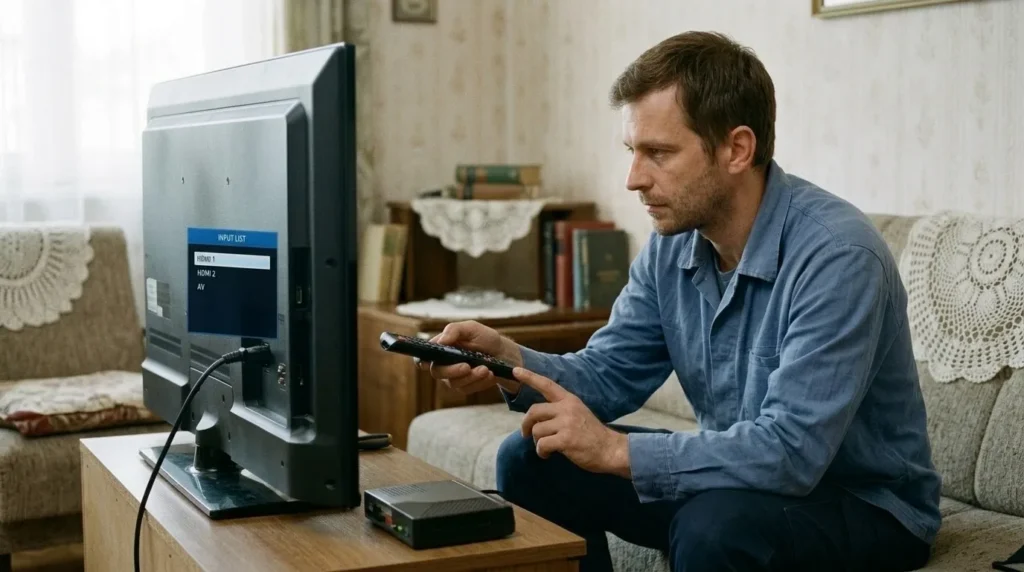
5 Check and, if needed, replace the signal cable
With the device unplugged, carefully inspect the cable carrying the signal (e.g. HDMI, DisplayPort, VGA, DVI, AV cable). Check that it's firmly plugged in at both ends — into the TV/monitor and into the signal source (computer, console, receiver). Visually inspect the connectors on the cable and on the devices for bent pins or damage. If you have a spare, known-good cable of the same type, swap it in and test. A damaged or poorly connected signal cable is an extremely common cause of missing picture or sound.
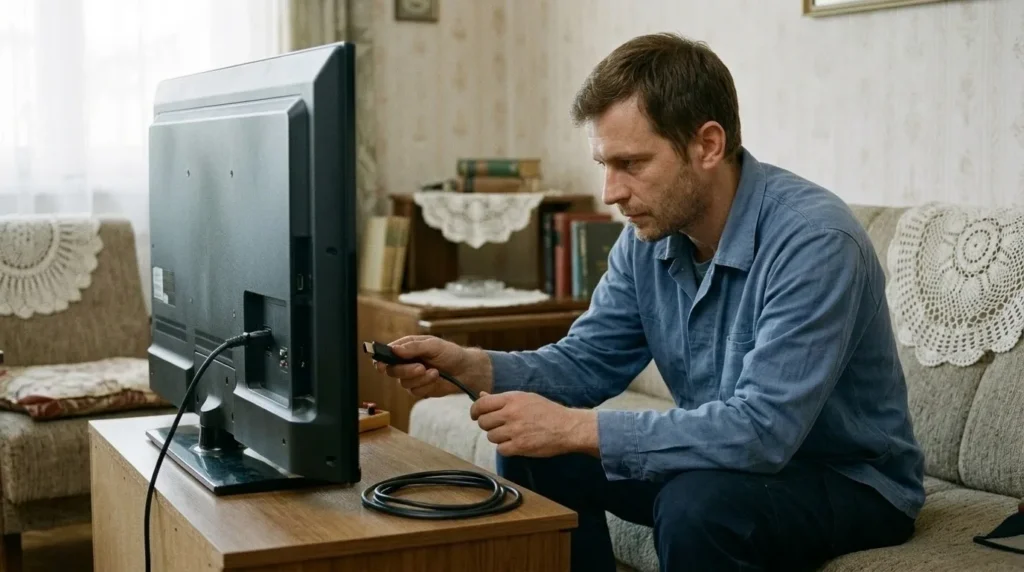
6 Power cycle the device
This is an often-overlooked but highly effective step for fixing software 'glitches.' Fully unplug the TV or monitor from the wall outlet. Then find the physical power button on the device itself (not on the remote) and hold it down for about 10-15 seconds. This drains any remaining voltage from the capacitors and resets the internal electronics. After that, plug the device back into power and try turning it on.
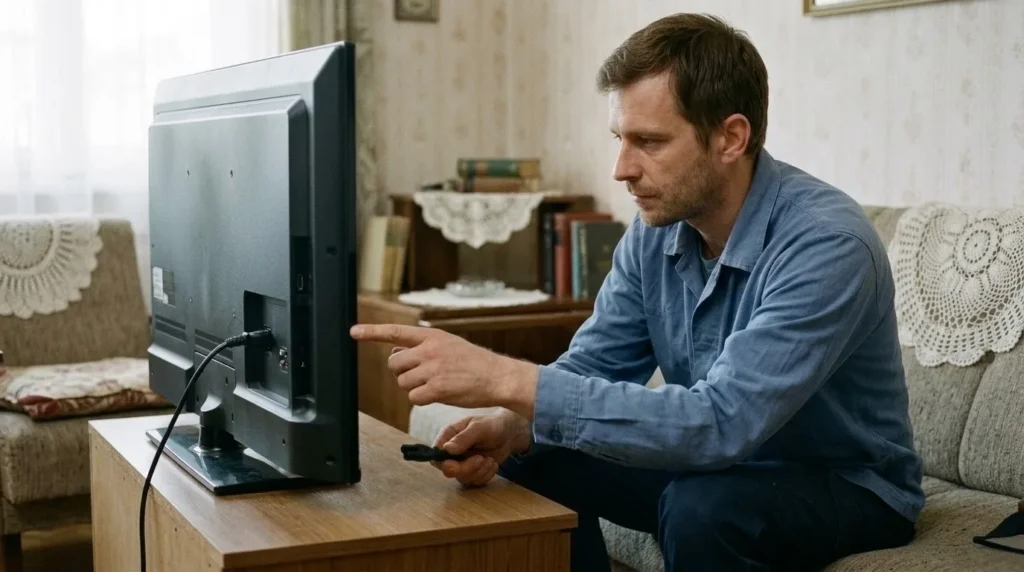
7 Test with a different signal source
To determine for certain whether the problem is in the TV/monitor or in the device sending the signal (e.g. your computer, receiver, or console), connect a different, known-good signal source to the TV/monitor. For example, connect a laptop or another DVD player/console via an HDMI cable. If you get a picture with a different signal source, the problem is in your original signal source, not the TV/monitor.
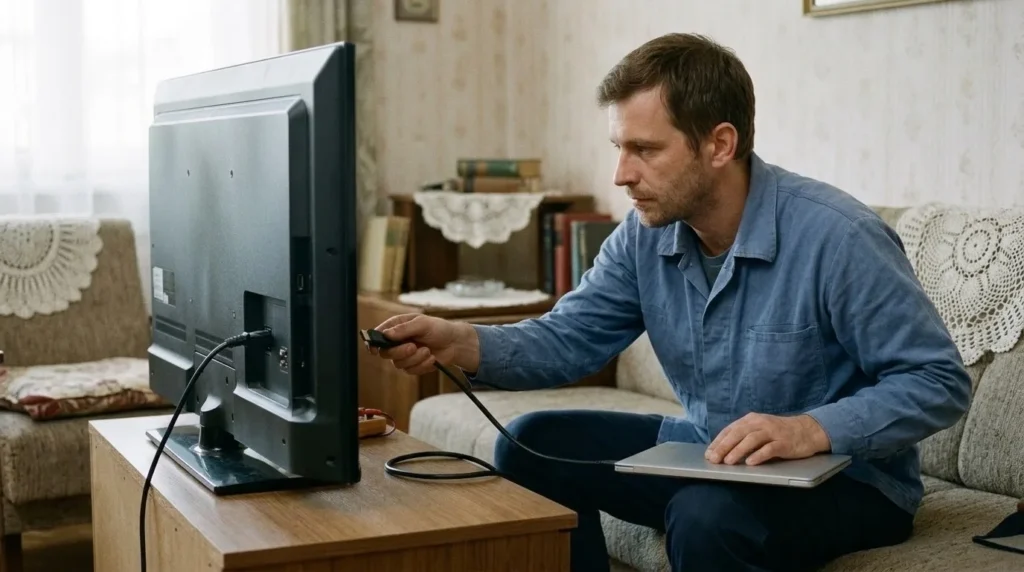
8 Assess whether you need a service technician
If you've gone through all the previous steps and the device still doesn't work, it's time to seek professional help. It's especially important to unplug the device immediately and not try to repair it yourself if you smell burning, see smoke, hear unusual loud sounds (crackling, buzzing), or if the power indicator blinks in a specific, repeating pattern (a so-called 'service code'). There are high voltages inside TVs and monitors that can be lethal even after unplugging, so never open the housing. Leave it to an authorized service center.
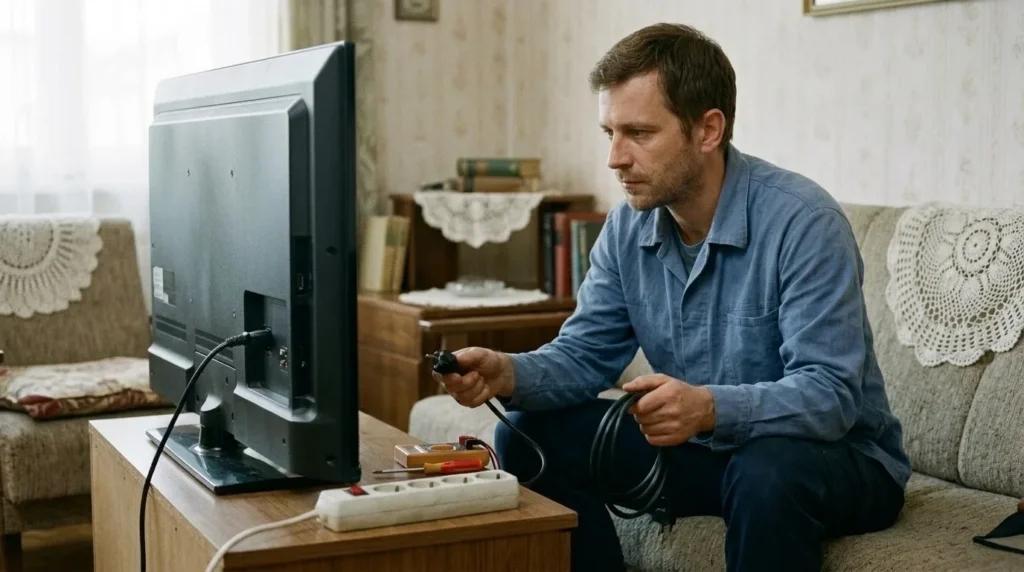
When to call a professional: If the job involves changes to the electrical panel, the main gas line, or load-bearing walls/beams — or if you're not sure how it will turn out — this is not a DIY task. Hire a licensed professional.
Final check
- The device turns on from both the remote and the button on the case, and the power indicator lights up normally (steady, not blinking).
- The picture is stable on the correct input (HDMI, DisplayPort, or other), without flickering, signal dropouts, or artifacts.
- Sound is present and clear (if applicable).
- All cables are firmly plugged in at both ends, and any damaged signal or power cable has been replaced with a working, compatible one.
Common problems
- The power indicator is on, but the screen stays completely black.
- Most often the wrong input is selected, or the problem is in the signal source. Cycle through all inputs with the Source/Input button, check whether another source works (another laptop, stick, or player), and swap in a known-good signal cable. The problem could also be with the screen's backlight, which requires servicing.
- The indicator blinks in a regular pattern and the device won't turn on.
- A blinking pattern is a service code that usually points to a fault in the power supply, the backlight, or some other internal component. Note how many times it blinks in a cycle, look up the meaning for your model in the manual or online — leave a fault like this to a service technician, since it requires opening the device and expert knowledge.
- The device turns on, but the picture appears and disappears (flickers).
- This is most often caused by a bad signal cable (e.g. HDMI). Try plugging it in firmly on both ends, and if the problem continues, replace it with a different, quality cable. Also check whether the resolution or refresh rate sent by the source is supported by the TV/monitor.