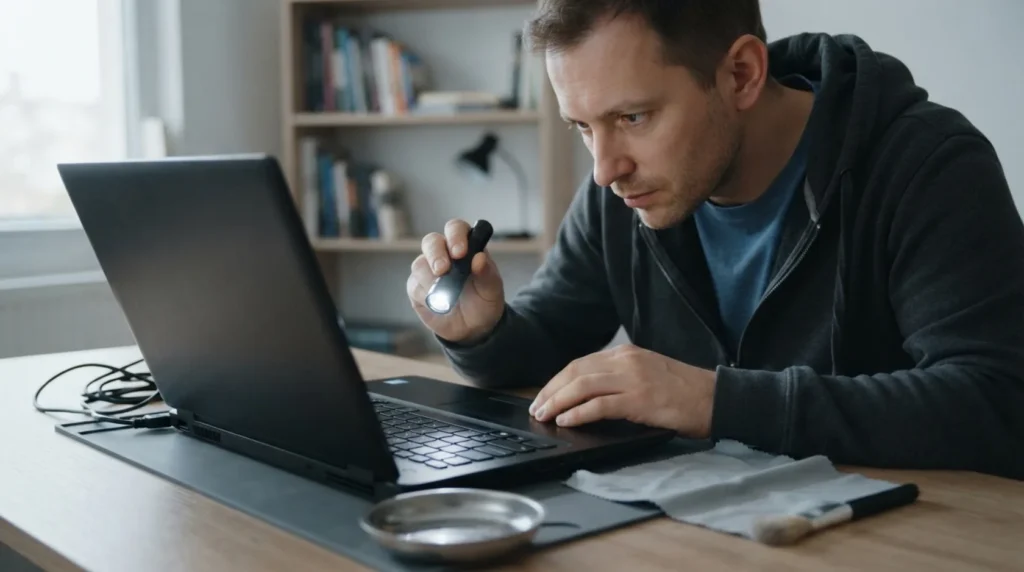
A laptop that turns on but the screen stays black doesn't automatically mean a dead motherboard; the problem can range from a frozen wake-up and RAM issues to the screen or graphics itself. Good home diagnostics goes from the lowest-risk steps toward a more serious conclusion, without impulsively taking the whole device apart.
You need to be able to unplug the charger, recognize basic operating indicators, and ideally try an external monitor. If the device is under warranty or has a sealed design, don't open it unless truly necessary.
⚠ Safety note: This guide involves working with electricity. If you're not completely sure about every step, stop and call a licensed professional. Before you start, always switch off the power at the breaker or close the main water/gas valve.
1 Do a full shutdown and drain any remaining power
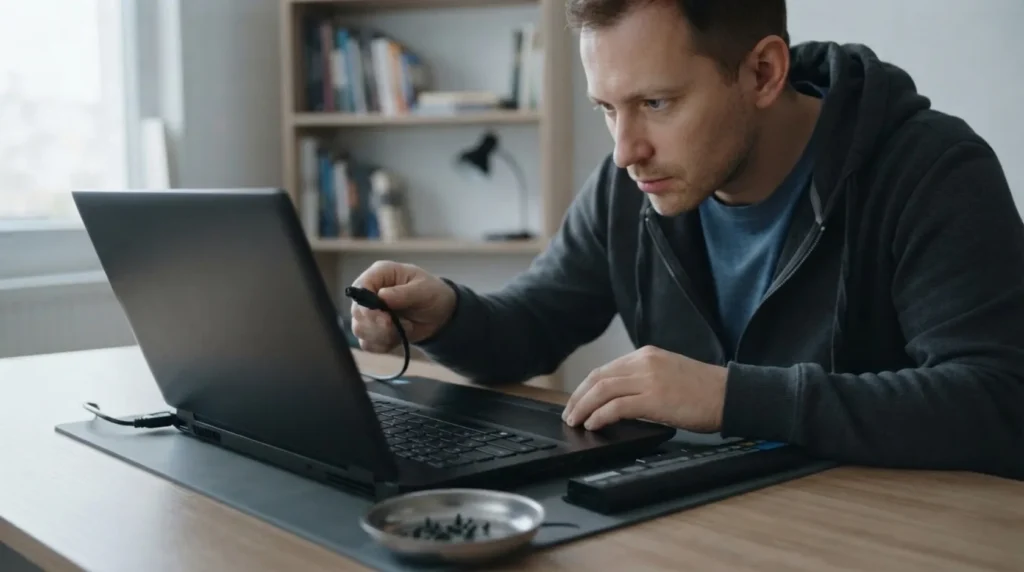
Unplug the charger, hold the power button long enough for the device to fully shut down and drain any remaining charge, then try turning it on again. For some laptops this resolves a stuck state that looks like a more serious fault.
2 Watch for sounds, lights, or the fan
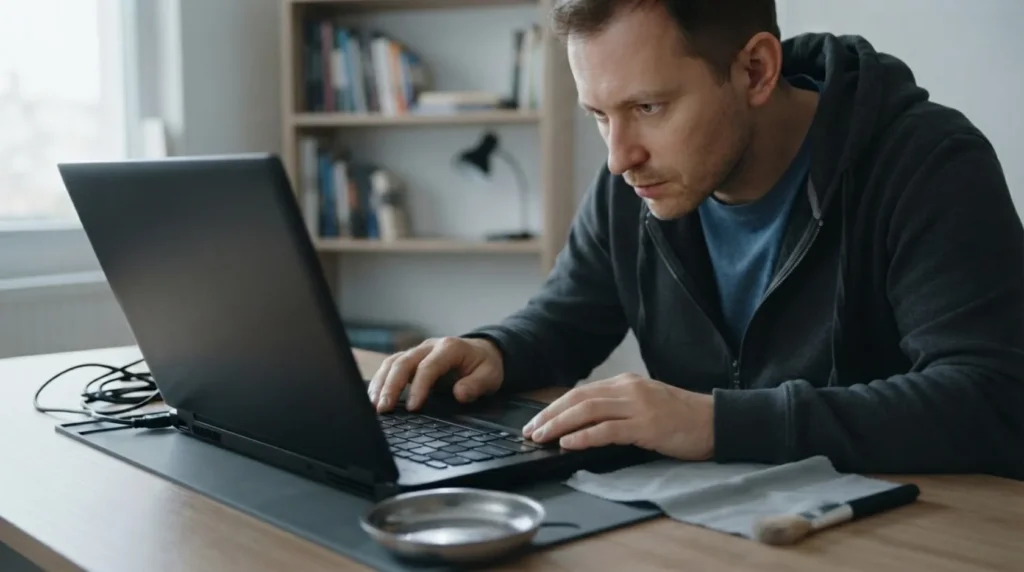
If the fan runs, the lights are on, and you can hear the system, the problem is more likely close to the screen or display than to the computer's start-up itself. If there's no normal reaction at all besides a brief flash, the conclusion is different and more serious.
3 Try an external monitor or TV if you can
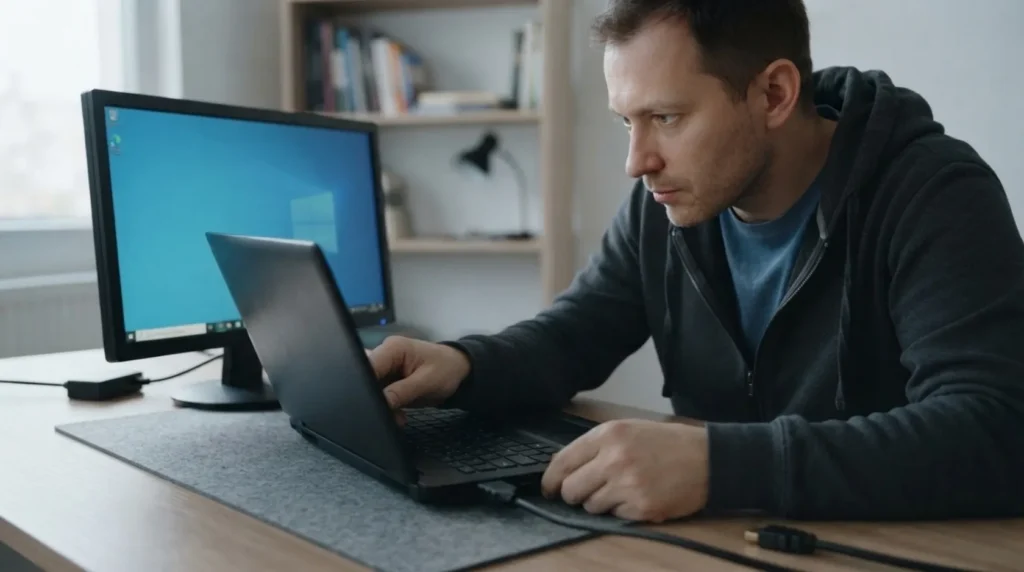
An external screen quickly helps you tell a faulty internal panel apart from a broader display fault. If the picture appears on the external screen, the likely fault shifts toward the screen cable, the panel itself, or the backlight, rather than the whole motherboard.
4 If you have experience, check the accessible RAM or easily reachable modules
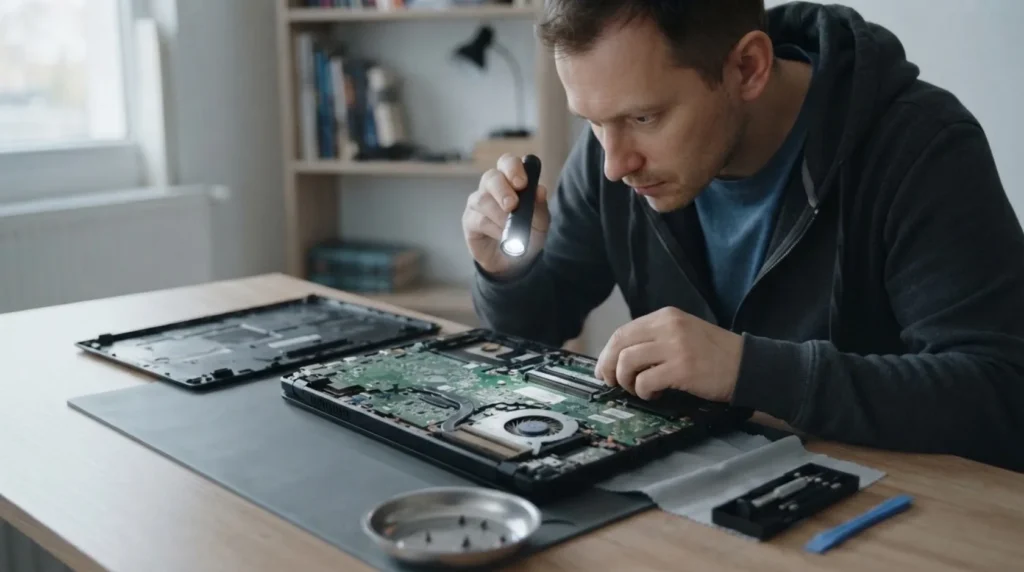
A poorly seated RAM module can cause a black screen even while the laptop otherwise shows signs of waking up. Only do this step if you know how to open the device without breaking the clips and if access is genuinely simple.
5 Find the line between basic checking and a service visit
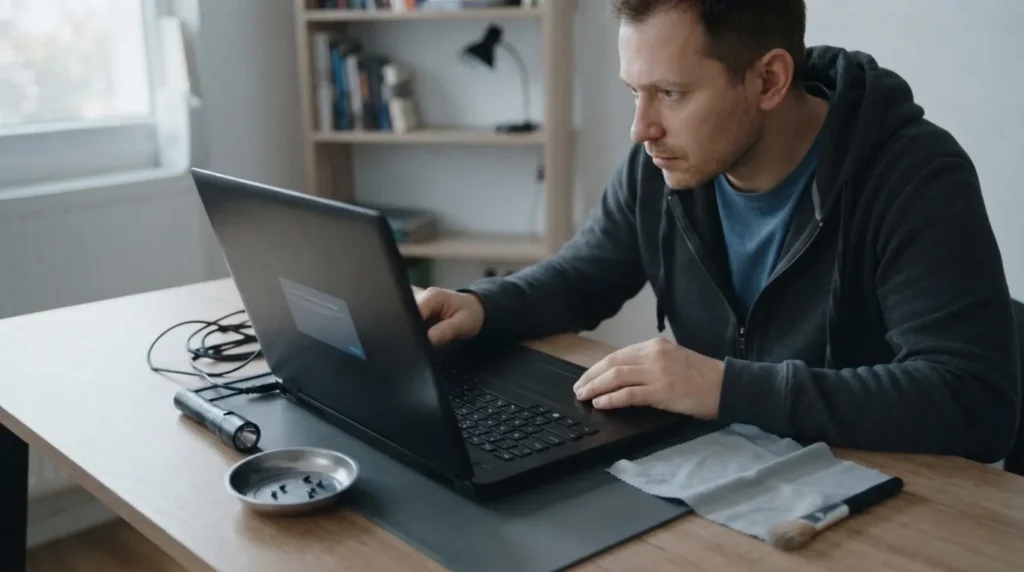
If there's still no display and the basic tests haven't given you a clear lead, it's time for a professional diagnosis. Taking a modern laptop apart further without a plan often ends in new problems: a torn flat cable, broken clips, or incorrect reassembly.
When to call a professional: If the job involves changes to the electrical panel, the main gas line, or load-bearing walls/beams — or if you're not sure how it will turn out — this is not a DIY task. Hire a licensed professional.
Final check
- Basic safe tests have been done without randomly disassembling the device.
- It's clearer whether the laptop boots the system and the problem is with the display, or whether it isn't starting properly at all.
- If service is needed, there are useful clues to report: lights, sounds, and the reaction to an external screen.
Common problems
- The fan runs, but there's no picture even on an external monitor.
- This points to a deeper problem than the internal screen alone. Home checking mostly stops here and moves on to professional diagnostics.
- The picture appears only occasionally after several attempts to turn it on.
- A poor module contact, a screen problem, or an early board fault are all possible. Don't prolong the agony with endless power cycling; look for a pattern and plan an inspection.